Wiggly Text in Flutter
In Flutter, it is possible to create some exciting animations quite simply. It
might seem slightly roundabout initially, but it is intuitive once you
understand what is happening. For example, if you need a fade animation, you can
use
FadeTransition
to create this. You need to have an AnimationController and a CurvedAnimation
to build it inside a StatefulWidget with the SingleTickerProviderStateMixin
for it to work, but once it is set up it is extendable. By using the same
AnimationController used for the fade animation, you can easily create a
slide animation using
SlideTransition.
Since Flutter is capable of more, I am going to do a small experiment using only an AnimationController to create some Wiggly Text.
TL;DR
You can check the final code (subject to change) on this dartpad I created.
https://dartpad.dev/?id=a21bdde0dbec4230e2441ef95afb0981
There are 2 sliders for “waveLength” and “waveHeight” and a text field that you can use to make any of your text wiggly.
Since Flutter is capable of more, we are going to be using it to create some Wiggly Text.
Let’s Begin
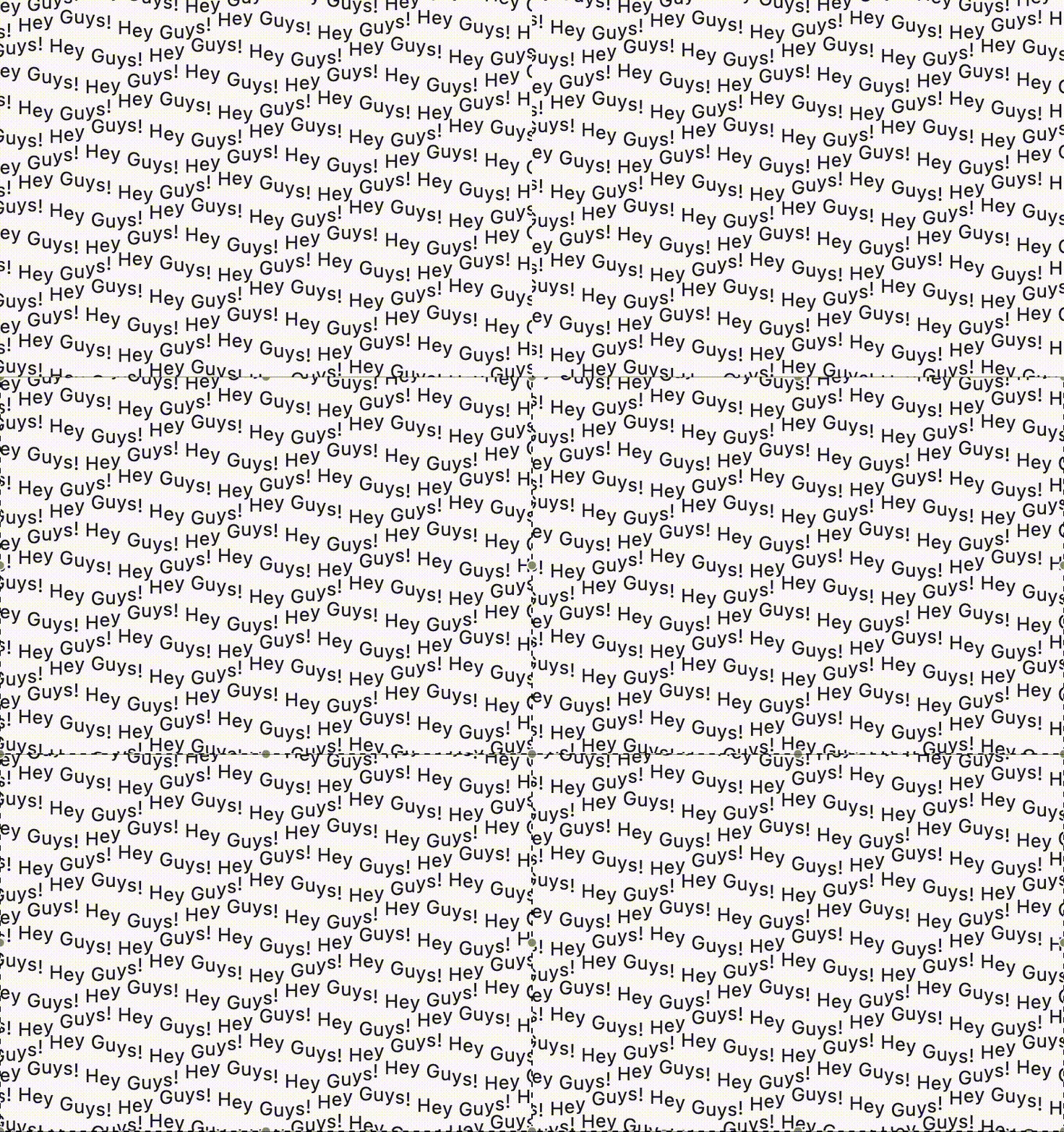
Before we begin, let’s see what the result is going to look like.

For this experiment, we need a couple of ingredients:
- AnimationController (for driving the animation)
- AnimatedBuilder (for listening to the controller)
- RichText (For the wiggly text)
- A little bit of trigonometry (just one sine function)
The first 2 ingredients are enough to create a lot of different kinds of animation.
Creating the animation
First we needed to create a smooth up-and-down animation. So, we create a
StatefulWidget with SingleTickerProviderStateMixin as the base for our widget.
class WigglyText extends StatefulWidget {
  WigglyText({super.key});

  @override
  State<WigglyText> createState() => _WigglyTextState();
}

class _WigglyTextState extends State<WigglyText>
    with SingleTickerProviderStateMixin {

  @override
  Widget build(BuildContext context) {
    // [your animated widget here]
  }
}
Once We have this, we need to create an AnimationController that will control the animations.
late AnimationController controller = AnimationController(
    vsync: this,
    lowerBound: 0,
    upperBound: pi * 2,
    duration: const Duration(seconds: 2),
)..repeat();
Here we can see the bounds for the animation go from 0 to pi * 2. We need pi 2 so that the value goes in a full circle which will also repeat indefinitely. What this allows us to do is to pass the value of the controller (using controller.value) and pass it to a sine function which will then keep the values between -1 and 1, and interpolate smoothly. For now, we can test out this animation using an AnimatedBuilder.
@override
Widget build(BuildContext context) {
  return AnimatedBuilder(
    animation: controller,
    builder: (context, _) {
      return Transform.translate(
        offset: Offset(
          0,
          sin(controller.value) * 10,
        ),
        child: Text(widget.text),
      );
    },
  );
}
In the above code, I have used AnimatedBuilder to listen to changes in the AnimationController and rebuilds the widget in the builder callback. Using the sine of the value for the offset will ease in and out from the values of -1 and 1, so multiplying this value by 10 would change the range from -10 to 10, i.e, Offset(0, -10) to Offset(0, 10).
Now we have a bobbing animation for the text. We want to do this for each of the letters, which is simple.
A String is a List of characters, so we can get the length to iterate through
it and give the animation for each letter. So, inside the AnimatedBuilder, we
will just restructure the widget in such a way we can use RichText with
WidgetSpan for each letter.
return RichText(
  text: TextSpan(
    children: [
      ...List.generate(
        widget.text.length,
        (index) {
          final offset = sin(controller.value) * 10;
          return WidgetSpan(
            child: Transform.translate(
              offset: Offset(
                0,
                offset,
              ),
              child: Text(widget.text[index]),
            ),
          );
        },
      ),
    ],
  ),
);
OOPS! But there is a problem with the above code. the offset the variable
is wrong because it will remain the same for all the values in the list of
WidgetSpans.
To fix this, we need to change the offset value to have different values for
each index. This is the benefit of having a trigonometric function here. Since
we can pass any value to the sine function it will map the value to the angle
on a circle, since the angle goes only from 0 to 2*pi radians (0 to 360
degrees). You can check how this works
here.
We will use this knowledge to give a slightly decrementing value for each index in the list, in such a way that it is trailing behind the current value.
final offset = sin(controller.value - (.3 * index)) * 10;
This will give us the result we need.
The only thing left is to refactor this code to make it usable as a standalone widget. The variables we need to convert are:
textwaveHeightwaveLengthduration(of animation)
Note: The waveLength here is sort of counter-intuitive, but is named for convenience’ sake.
The final code is available in the dartpad
Going Beyond
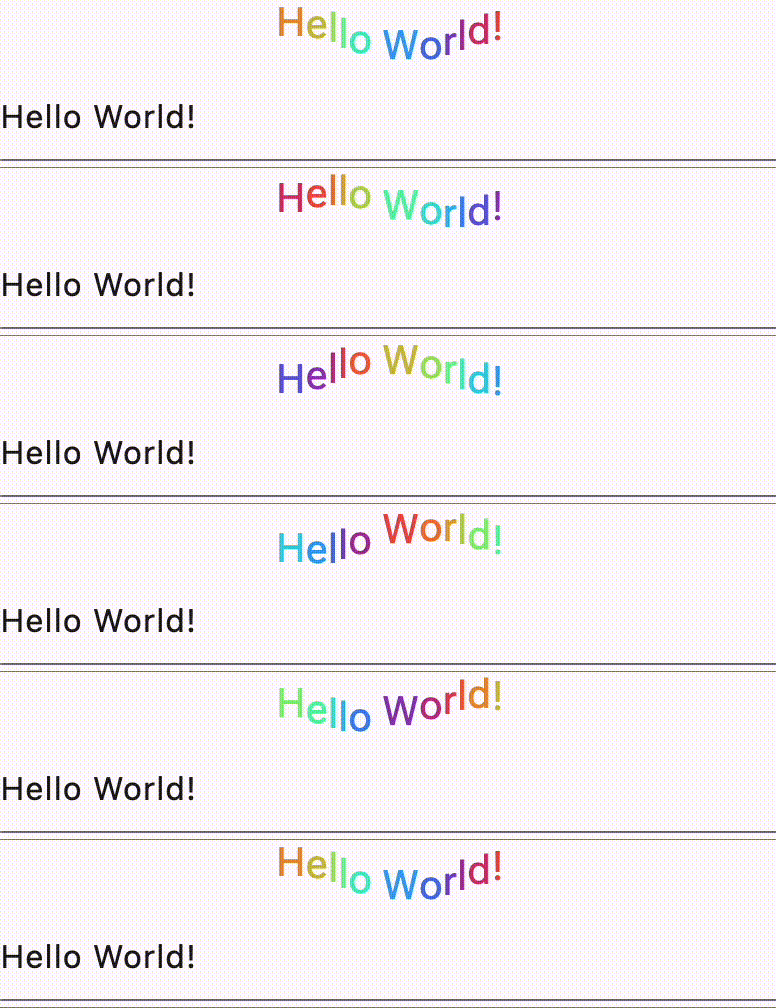
Color Change
Looks Like we have achieved what we wanted, but this is capable of much more.
I can change the color depending on the value of the controller.value, that
has the radians offset by a small amount.
Font Variations
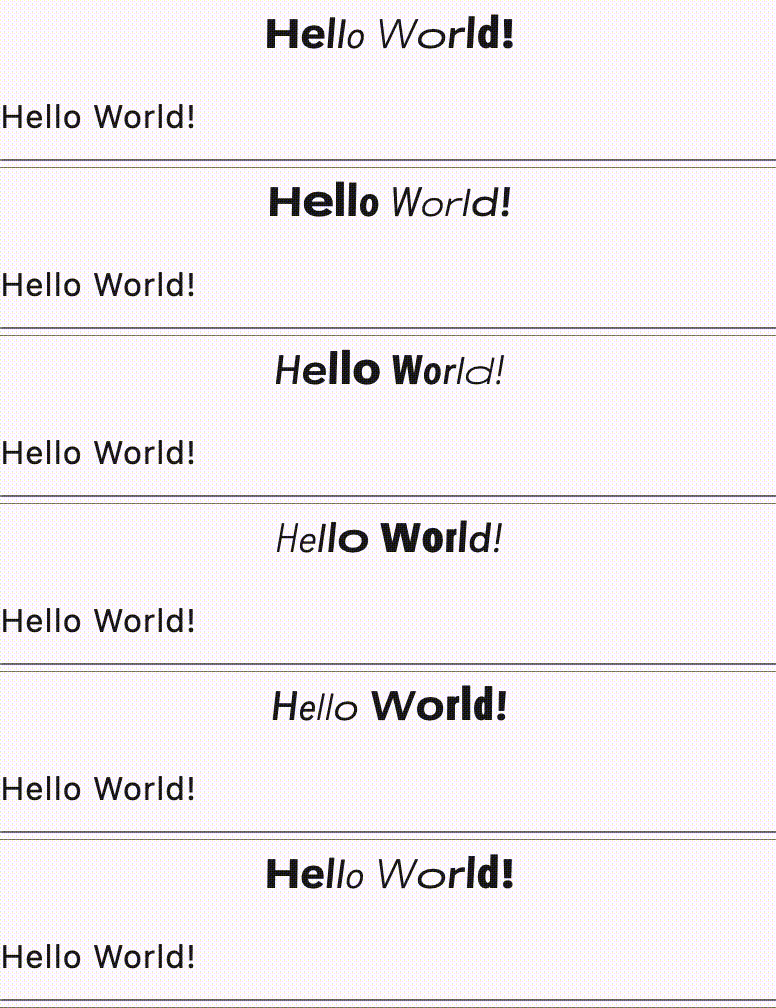
Instead of colors we can use variable
fonts
and the
fontVariations
parameter to get some really funky animations. I have used Roboto
Flex which has many
different Axes available to play with. I choose a couple of Axes and animated
them.
!! WARNING !!
This is purely experimental! There is HUGE performance penalty when animating
fontVariationsbecause the text layout hogs CPU cycles and is NOT RECOMMENDED AT ALL in a production app.This is running on MacBook Air M1. I am not brave enough to run it on an Android device.
If we want we can combine all of these into one and have something crazy.
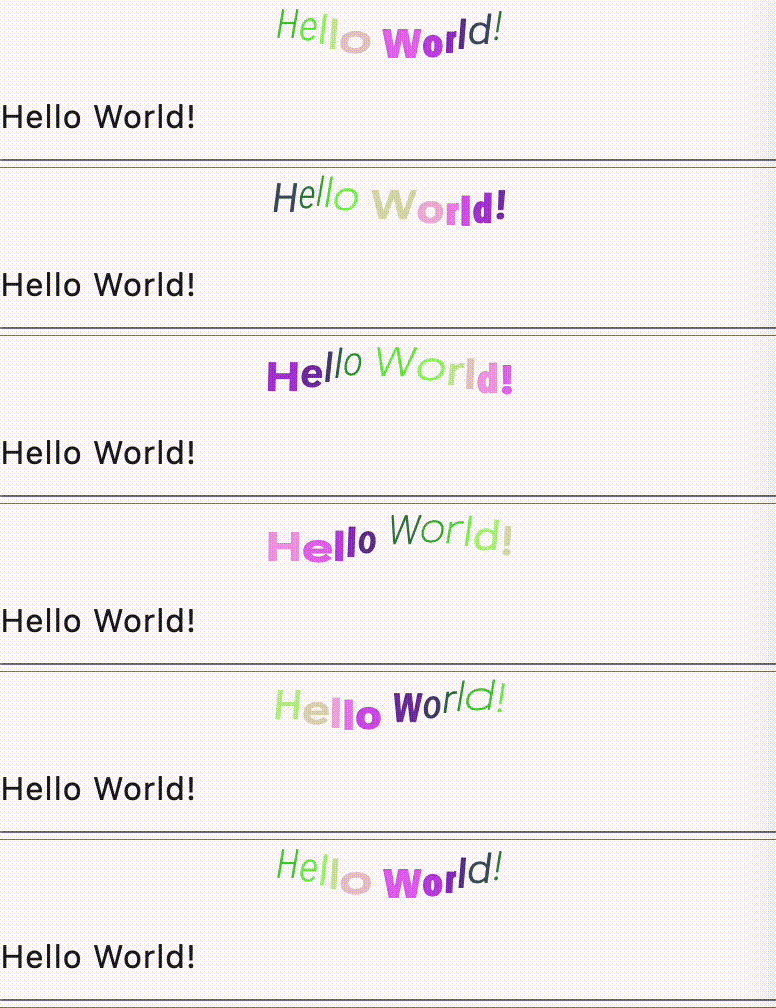
This was relatively simple to implement.
The fontVariations require variable fonts to be imported, so this will not
work on a dartpad. So, the updated source code is available on my
github.
SEE YA! BYE!